

Tutorial
Check the CAGE and UEI Columns Before the Export Leaves
For business development, capture, marketing operations and events staff at large defense and space primes with strict data policies: check every CAGE code, Unique Entity ID, ZIP code and long record number in a partner, supplier or show lead export against its published shape before the file is sent, uploaded or saved, and use the companion lab to see which columns to fix first.
Time needed: About 30 minutes for one export with four identifier columns; a fresh export from the source system may take longer
Before you start:
- One partner, supplier or show lead export that is about to be sent, uploaded or saved, and the original export file as it came from the source system
- The spreadsheet tool IT provides, and permission to pull a fresh export from the source system if a column is damaged
- The name of the person who owns the source system, such as the CRM or the registration site, for questions about a value
Market Intelligence Account Data Data Quality Crm Events Defense Space
Who this is for: people in business development, capture, marketing operations and events who work at one of the largest defense or space primes, under strict data policies. You pull teaming partner, supplier and show lead lists from company systems, you open them in the spreadsheet tool IT provides, and company data never goes into a public chatbot. A box for small contractors and startups comes after the list of mistakes.
Offered as general information; it is not compliance or legal advice. The agency that issued each identifier, together with your records team, settles the correct value.
Teaching example: Invented Varrowdyne Systems, its export columns and every identifier value in the lab are made up. Any value that happens to match a real CAGE code or Unique Entity ID is a coincidence; do not look them up.
One export, column by column
The capture manager needs the teaming list in the proposal tool by noon. The events lead needs exhibitor CAGE codes in the registration upload. Somewhere along the way, someone opened the CSV with a double-click, a code that began with a zero lost it, and the file was saved. Nobody notices until a partner drops out of a matching step, or a lookup by CAGE code finds the wrong company.
A wrong code is not cosmetic. The CDSE job aid on CAGE codes says: “The code may be used for a Facility Clearance, a Pre-Award survey, automated Bidders Lists, pay processes, source of supply, etc.” (CDSE).
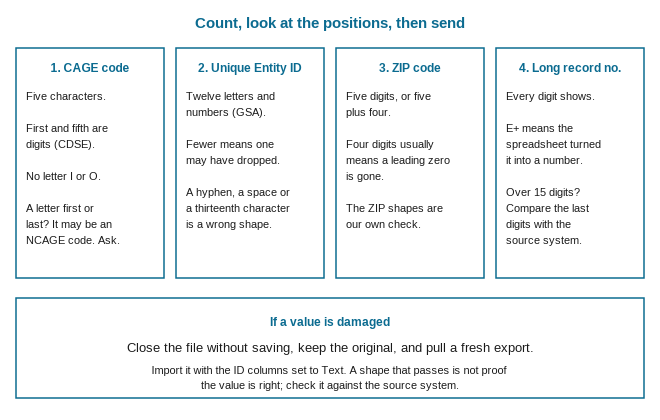
The good news for defense teams is that their identifiers have published shapes. A CAGE code has five characters with set positions (DLA). A Unique Entity ID has twelve (GSA). So the check here starts with shape: count the characters and look at the positions, column by column, before the file is sent, uploaded or saved over the original. Only then compare with the source system. The work happens in the spreadsheet tool you already have, and no AI tool is needed.
The companion article, Hidden Instructions in the Mail and Files Your Company AI Reads, covers a different risk from the same day’s work: outside text an approved assistant reads. This tutorial stays with the export.
The steps
-
Learn the CAGE shape from the agencies that publish it. The Defense Logistics Agency’s help page says: “A Commercial and Government Entity (CAGE) code is a five-character code uniquely identifying a specific company or business organization” (DLA). The CDSE job aid says the same thing in its own words: “CAGE Code is a five (5) position code that identifies companies doing or wishing to do business with the Federal Government” (CDSE). The same aid names the issuer: “DLA Logistics Information Services is the only authorized source of CAGE Codes” (CDSE). In the lab, a CAGE value that is longer than five characters or carries a space or a hyphen is VERIFY R6, pinned to the DLA sentence.
-
Check the positions, and know where the two sources differ. CDSE says: “The format of the code is the first and fifth position must be numeric” (CDSE). It adds: “The second, third and fourth may be any mixture of alpha/numeric excluding alpha letters I and O” (CDSE). DLA describes the first character differently. Its page says: “The format of the code may be any mixture of alphanumeric values excluding the letters ‘I’ and ‘O’” and “The fifth position will always be numeric” (DLA). This tutorial and its lab follow CDSE on the first character. A CAGE value with an I or an O is VERIFY R7: it is probably a one or a zero typed as a letter, so confirm with the partner.
-
Ask before you change a code that starts or ends with a letter. CDSE also says: “Foreign registrants must have a NATO Commercial and Governmental Entity (NCAGE) Code assigned” (CDSE). A value with a letter in the first or fifth position may be an NCAGE code for a company outside the United States, or it may be damaged. In the lab that is VERIFY R8, never a STOP. Ask the partner which it is, and leave the value alone until they answer.
-
Check every Unique Entity ID for twelve characters. GSA’s forum FAQ says: “The Unique Entity ID (SAM) is a 12-character alphanumeric value managed, granted, and owned by the government” (GSA). A UEI with fewer characters is VERIFY R5, the dropped-character check. One with more characters, or with a hyphen or a space, is VERIFY R9. The lab reads lowercase as uppercase and trims outside spaces, so neither counts as damage.
-
Open the export by importing it, with ID columns set to Text. An FCC guide for Form 477 filers warns: “If you simply double-click the file to open it in Excel, for instance, Excel will make assumptions about the structure of the file that aren’t always accurate” (FCC). Writing about the census code columns in its own files, the same guide says: “They must be imported as TEXT or you will lose the leading zeros and render the codes invalid” (FCC). That sentence is about census files, so this lab uses it to back a VERIFY, not a STOP. A value with fewer characters than its format is VERIFY R5. A file opened by double-click that is not a fresh export, with a plan to send it, is VERIFY R13: spot-check other columns against the original before it goes.
-
Look for E+ and for long numbers that lost their tail. A CUNY Office of Library Services help page explains the mechanism: “Excel automatically detects data types when opening files, and treats long numeric strings as numbers rather than text” (CUNY). Its example of a dropped zero is “00123456789 becomes 123456789” (CUNY). CUNY’s Office of Library Services, writing about records exported from its library system and opened in a spreadsheet, says “Excel’s number precision is limited to 15 significant digits” (CUNY Office of Library Services, updated 2025-08-07), a limit this tutorial applies only to long record numbers, such as a CRM record ID. A five-character CAGE code and a twelve-character UEI are far shorter than that. A value showing E+ is VERIFY R4. A record number longer than that limit is VERIFY R11: compare its last digits with the source system. A ZIP code or record number with stray characters or an odd length is VERIFY R10, labeled “(Our rule)”, because no source pinned here sets ZIP shapes.
-
Close a damaged file without saving. CUNY is blunt about what cannot be undone: “Unfortunately, once Excel converts to scientific notation, the original precision is lost and cannot be recovered” (CUNY). The same page says: “Do not save the corrupted file, as this makes the data loss permanent” (CUNY). That is the one STOP in the lab. A value that no longer fits its shape, with the plan to save over the original export, is STOP R1. Close the file, keep the original as it came, and pull a fresh export. If the values look right and the plan is still to save over the original, VERIFY R12, labeled “(Our rule)”, asks you to save your working copy under a new name instead.
-
Keep the repair inside the company. It is tempting to paste a broken column into a chatbot and ask it to fix the codes. VERIFY R3, labeled “(Our rule)”, says no: partner and supplier identifiers are company data, your company’s own AI policy decides where they may go, and the right value lives in the source system. The fix is a fresh export from the source system.
-
Fill in every answer, then run the lab. VERIFY R2, labeled “(Our rule)”, flags a blank answer, an answer that is not one of the choices, or an empty value. A PASS (R14) means the value fits its published shape. It does not prove the value matches the source system, so keep the original export either way.
Try it now: open the defense export identifier check lab. It opens on Case B. Watch Col 2, the supplier CAGE code that should start with zero: it now reads 7A41, the file was opened by double-click, and the plan is to save over the original, so STOP R1 fires, with R5 and R12 listed with it. Then watch Col 4, a ZIP code that lost its zero, opened the same way: VERIFY R5 first, also matching R13. Col 6, the 15-digit record number, shows E+ notation: VERIFY R4. Load Case D and watch Col 1, a CAGE value that starts with a letter: VERIFY R8, the NCAGE question.
The worked example
Invented Varrowdyne Systems is sending a supplier list to a proposal team. In Case B, the supplier CAGE code in Col 2 has lost its leading zero, and someone plans to save the file over the original: STOP R1, so the person closes the file without saving and pulls a fresh export. The ZIP code in Col 4 is four digits after a double-click open: VERIFY R5, also matching R13. The record number in Col 6 shows E+: VERIFY R4. The other five columns pass, and a PASS still means shape only. Once the fresh export is imported with ID columns set to Text, the same columns should read as they did in the source system.
Check your counts against each case
Load each case in the lab and confirm its STOP, VERIFY and PASS counts against the table. The first matching check sets the verdict, and every other match is still listed beside it. STOP here means close the file without saving and pull a fresh export. VERIFY means settle the value with the source system or the partner before the file leaves. PASS means no teaching check fired on that column.
| Case | STOP | VERIFY | PASS |
|---|---|---|---|
| A, a clean export | 0 | 0 | 8 |
| B, a supplier list after a double-click | 1 | 2 | 5 |
| C, a chatbot repair and a letter O | 0 | 3 | 5 |
| D, a held UEI saved over the original | 1 | 2 | 5 |
| E, values left as someone entered them | 0 | 3 | 5 |
| F, four problems in one export | 1 | 3 | 4 |
Seven columns match more than one check: B Col 2 (R1, R5 and R12), B Col 4 (R5 and R13), C Col 7 (R7 and R13), D Col 8 (R1, R5 and R12), E Col 6 (R11 and R13), F Col 1 (R6 and R13), and F Col 5 (R1, R5 and R12).
The columns, values and checks are invented teaching material, not compliance or legal advice. Where two or more checks hit one column, work through them in the order printed, first match first. Then run the same check on your own export. Every CAGE value should have five characters, digits in the first and fifth positions per CDSE, and no I or O. Every UEI should have twelve letters and numbers, per GSA. ZIP codes should keep their leading zeros, and long record numbers should show every digit with no E+. The original export should still be untouched.
Common mistakes
- Opening the CSV by double-click because it is faster. Import it, and set the ID columns to Text before the spreadsheet guesses.
- Saving the damaged file to be safe. Saving is what makes the loss permanent. Close it and pull a fresh export.
- Typing the zero back in by hand. That may fix one value and miss the next. A fresh export fixes them all at once.
- Changing a CAGE code that starts with a letter. It may be an NCAGE code. Ask the partner first.
- Pasting a column into a chatbot for repair. Identifiers are company data, and the right value lives in the source system.
- Reading a PASS as proof. A PASS means nothing obvious broke on the way out. It does not mean the code belongs to the right company.
Small contractors and startups. A small supplier often keeps its customer and partner list in one spreadsheet that is also the only copy. Keep each export from the CRM or the registration site as a read-only original, work in a copy with ID columns as Text, and run the same checks before uploading anything to a prime’s supplier portal. If the only copy is already damaged, ask the source system’s owner for a fresh export before anything else. (Our suggestion; none of the sources here addresses small contractors.)
Related
See also Fix the Registration Form Before You Send Another Reminder, which asks for a CAGE code on a form, why AI will not fix messy defense account data, and turning a show lead export into an ontology.
Limits
These sources are one DLA help page, one CDSE job aid, one FCC guide for Form 477 filers, one CUNY library help page last updated on August 7, 2025, and one GSA forum FAQ. They publish identifier shapes and describe how a spreadsheet can change a file. None measures how often exports are damaged, so this tutorial prints no such figure. On the first CAGE character, the lab follows CDSE. The ZIP shapes in the lab are our own. A PASS checks shape only, and the agency that issued each identifier, together with your records team, settles the correct value.
Sources
- Defense Logistics Agency, Qualified Products Database help page
- Center for Development of Security Excellence (DCSA), "CAGE Codes" job aid
- Federal Communications Commission, "More About Census Geocoder," FCC Form 477 resources
- CUNY Office of Library Services, FAQ on long numbers in exported spreadsheet files, last updated 2025-08-07
- General Services Administration, "Unique Entity ID (SAM) Frequently Asked Questions"
- Adapted from AssociationAI, "Check a Member Export for Damage From a Spreadsheet Program, Then Fix It at the Source"