

Tutorial
Send the Event App to IT Before Anyone Installs It
For events, marketing and business development staff at large defense and space primes: fill in one request sheet per show app, including microphone and camera access and a one-line purpose, send the sheet to IT before anyone installs the app, and use the companion lab to see which rows to fix first.
Time needed: About 40 minutes to fill in one request sheet for each show app and send it to IT; waiting for IT's answer may take longer
Before you start:
- The list of apps anyone on the traveling team may install for the show, including the agenda, the badge scanner, the hotel app and any sponsor game
- The permission screen or store listing for each app, or a note of what IT already has on file
- The company's usual way of sending a request to IT
Events Trade Shows ADSEC
Who this is for: events, marketing and business development people who take teams to shows, industry days and supplier events, and who work at a large prime in defense or space. Show phones are company phones IT manages. Install links, venue codes and odd attachments go through company email and device handling, including quarantine. Where an AI tool is allowed at all, it stays on an account IT runs. If you work at a small contractor, a labeled box sits after the mistakes list.
For general information; this is not security, compliance or legal advice. Whether an app may go on a company phone is decided by IT and the security office; this sheet only prepares the request.
Teaching example: Invented Talvenrock Systems and the eight sample apps in the lab are made up. No real prime, show, hotel or app is named.
One sheet per app, before anyone installs it
Every show brings an app: the agenda and floor map, the badge scanner, the hotel key, the sponsor game. At a prime, company phones are managed and unknown links are quarantined, so the events lead cannot just tell the team to download it. The lead can do the useful part of the request in advance: say what the app is for, where the install comes from, and what it asks for, especially the microphone and the camera.
NIST Special Publication 800-124 Revision 2 (May 2023), Guidelines for Managing the Security of Mobile Devices in the Enterprise, says: “Microphones and cameras should only be exposed when in use and protected at all other times.” That sentence is NIST guidance for enterprise mobile devices, not a requirement on your company. This walkthrough uses it to flag an app that asks for the microphone or the camera “Always, including in the background” at install. The companion article, Inaudible Ad Beacons and the Show Phone’s Microphone, explains why that microphone question matters. This tutorial is the request that goes to IT.
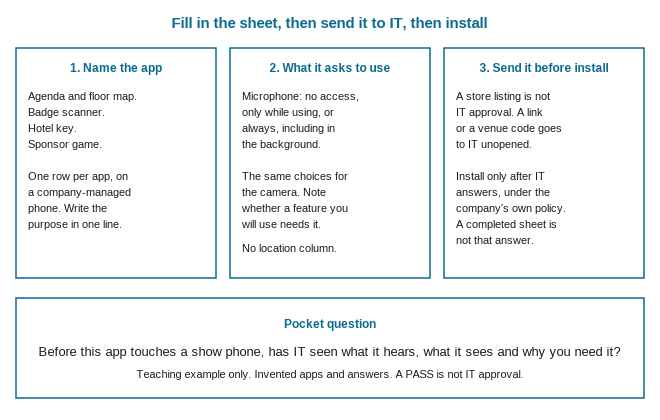
The steps
-
Start from the company’s own position. NIST SP 800-124r2 tells organizations they “should base their mobile device security policy on the assumption that all unknown third-party apps downloaded by its employees to enterprise-accessible mobile devices are untrusted.” It also says: “Any application installed onto a mobile device can act as a portal for the developer to compromise the device and access sensitive enterprise information” (NIST SP 800-124r2). That is why the request goes to IT first, before anyone installs the app. The same publication’s scope “includes mobile devices, centralized device management, and endpoint protection technologies, as well as both organization-provided and personally owned deployment scenarios” (NIST SP 800-124r2).
-
Know who decides. NIST Special Publication 800-163 Revision 1 (April 2019), Vetting the Security of Mobile Applications, “outlines and details a mobile application vetting process.” In that process, “An authorizing official decides the approval or rejection of an app using the recommendations provided by the analysts,” and weighs, among other things, “the type of users and how the app will be used” (NIST SP 800-163r1). Your one-line purpose answers that. In the lab, a missing purpose is VERIFY R13, labeled “(Our rule)”.
-
Do not treat a store listing as approval. NIST SP 800-163r1 says: “Organizations should not assume an app has been fully vetted or conforms to their security requirements simply because it is available through an official app store.” In the lab, an official-store app that IT has not approved yet is VERIFY R11, pinned to that sentence. If the action is still Install, VERIFY R12, labeled “(Our rule)”, can also match. VERIFY R5, labeled “(Our rule)”, is the rejected case: leave that app off every phone going to the show, and ask IT which approved app does the same job. No pin in this tutorial says “don’t install”; those two rows are team practice, labeled as such. For R5, R8 and R12, your company’s own policy decides.
-
Check the microphone and the camera. NIST SP 800-124r2 warns that mobile malware can use sensors “to unknowingly collect information about the user or the administrator,” and then says: “Microphones and cameras should only be exposed when in use and protected at all other times.” The same guide notes that “Apps may be designed to use the device’s camera or microphone or collect and share (or sell) sensitive information, including user location information, contact details, sensor data, photos, and messages with backend services provided by untrustworthy third parties” (NIST SP 800-124r2). NIST SP 800-163r1 adds that “an app may be permitted access to additional device capabilities that are beyond the scope of its described functionality.” In the lab, microphone or camera access set to “Always, including in the background” with the action Install is STOP R1 or STOP R2. Both messages call that NIST guidance, not a requirement. If the request is on hold and the same always-on setting is still there, the lab uses VERIFY R4, pinned to the same sentence.
-
Ask only for what a feature needs. CISA’s Mobile Communications Best Practice Guidance (as of December 18, 2024) says: “While applicable to all audiences, this guidance specifically addresses “highly targeted” individuals who are in senior government or senior political positions and likely to possess information of interest to these threat actors.” Because of that scope, this walkthrough uses CISA only to back VERIFY rows, not STOP. CISA tells readers to “Review which apps access sensitive data, such as location, camera, and microphone,” to “Revoke permissions that are unnecessary or excessive for the app’s functionality,” and: “Unless absolutely required, avoid granting apps access to sensitive permissions such as location, camera, or microphone” (CISA, December 18, 2024). This sheet has no location column; location settings already on a phone are covered in the staff phone location check. In the lab, a microphone the team will not use is VERIFY R9, and a camera the team will not use is VERIFY R10. A badge scanner needs the camera while you scan; it does not need it the rest of the day. An agenda app often needs neither.
-
Check the install source. CISA advises: “Exercise caution if using third-party app stores or “sideloading” apps from other sources” (CISA, December 18, 2024). In the lab, an install file from a website is VERIFY R7, which also quotes NIST on treating unknown third-party apps as untrusted. A link in an email or a QR code at the venue, from a sender nobody has checked, is VERIFY R6, labeled “(Our rule)”: do not open or scan it; send it to IT the way your company handles unknown links and email, and wait for their answer.
-
Keep expectations right. Even thorough vetting, NIST SP 800-163r1 says, comes with this limit: “there is no guarantee that even the most thorough vetting process will uncover all potential vulnerabilities or malicious behavior.” A PASS on this sheet is not IT approval, and not a security clearance. Keep the sheet with the request.
-
Know what IT can enforce, then run the lab. NIST SP 800-124r2 lists, among other enterprise controls, “Restrict which apps may be installed by allowlisting allowed apps (preferable) or blocklisting prohibited apps,” and “Restrict the permissions (e.g., camera access, location access) assigned to each app.” Those are IT’s tools, not a task for the events lead to configure. Your job is to send a complete request. VERIFY R8, labeled “(Our rule)”, flags a request meant for a personal phone: show work stays on company phones and company accounts; ask IT whether a company phone can carry the app instead. For R5, R8 and R12, your company’s own policy decides. VERIFY R3, labeled “(Our rule)”, flags a blank, an unlisted answer, or a link answer that does not fit the source. Fix those before anyone relies on the sheet.
Try it now: open the event app vetting request lab and load Case B. Watch App 5, the translation app for allied visitors, which asks for the microphone at all times, including in the background, with the action set to Install: STOP R1 fires. Then watch App 3, the hotel check-in app, which asks for the camera only while using, with no feature the team uses that needs it: VERIFY R10. Then watch App 6, the session survey, whose link came from a sender nobody checked, and which asks for the microphone with no feature that needs it: VERIFY R6 fires first, and VERIFY R9 is listed with it. Load Case C and watch App 2, whose camera is set to always-on while the app is not yet approved and the action is still Install: STOP R2 fires first, and VERIFY R12 is listed with it.
The worked example
Invented Talvenrock Systems sends eight apps to IT for a show. The translation app for allied visitors asks for the microphone at all times, including in the background: STOP R1, so the team must change that setting or leave the app off the phone. The hotel app asks for the camera while in use, and no feature the team uses needs it: VERIFY R10. The session survey link came from a sender nobody checked, and the app asks for the microphone with no feature that needs it: VERIFY R6 (first match), also matching R9. The other five rows PASS, and the sheet still goes to IT. A PASS is not approval to install.
Check the sheet against these totals
Load each case and confirm the lab’s STOP, VERIFY and PASS counts match the table below. The first matching check is the one printed as the verdict; any other match still appears in the “also matched” column. STOP, here, means change the always-on microphone or camera setting or leave the app off the phone, then run the sheet again. VERIFY means take the row to IT and settle it before an install. PASS means the teaching checks did not fire on that row, which is not the same thing as IT saying yes.
| Case | STOP | VERIFY | PASS |
|---|---|---|---|
| A, every row passes | 0 | 0 | 8 |
| B, translation app listening throughout | 1 | 2 | 5 |
| C, badge scanner watching throughout | 1 | 2 | 5 |
| D, a hold plus a website install file | 0 | 3 | 5 |
| E, answers kept as someone typed them | 0 | 3 | 5 |
| F, several problems on one sheet | 1 | 2 | 5 |
Eight rows match more than one check: B App 6 (R6 and R9), C App 2 (R2 and R12), C App 7 (R11, R12 and R13), D App 4 (R4 and R5), D App 8 (R4 and R9), E App 5 (R9, R11 and R12), F App 6 (R1, R6 and R9), and F App 7 (R11 and R12).
The eight apps and the checks are invented teaching material. They are not legal, security or compliance advice, and a PASS is not IT approval. If two or more checks hit the same row, work through them in the order printed, starting with the first, before that app is installed. Then do the same with your own request. All ten answers should be filled in. Microphone and camera access should be “Only while using” or “No access,” unless a feature you will use needs them, and should not be “Always, including in the background” when the action is Install. The install should come from the company catalog or an official store, or the file or link should already have been sent to IT unopened. After a rejection, or while a request is still unanswered, the company’s own policy decides what happens next.
This tutorial has no benchmark. None of the three sources gives a number the walkthrough needs. The companion article carries the pair’s 2017 count.
Common mistakes
- Writing the request after the show sends the link. Write it before, while there is still time for IT to answer.
- Treating a store listing as IT approval. A listing tells you the app exists. It does not tell you IT has looked at it.
- Leaving the purpose blank. The official who decides is asked to weigh how the app will be used. One line is enough.
- Granting the microphone or the camera because the prompt appeared. If no feature you will use needs it, say so on the sheet and ask IT to leave that access off.
- Opening a venue QR code or an install link from a sender nobody checked. Send it to IT unopened, the way your company handles unknown links.
- Reading a PASS as approval to install. A PASS means the sheet is complete, not that the app is approved.
Small contractors and startups. If you do not have a separate events staff, assign one owner for the app list. Complete a row for each app, with microphone and camera access and a one-line purpose, and send that sheet to the person who decides what may go on a work phone, before any install. If people travel with personal phones, say so on the sheet and keep company work in company accounts. Write down, as policy, that the request sheet and the permission screens stay out of public AI products and are reviewed only in an approved editor.
Related
See also: the staff phone location check, what generates records at a show, cameras you do not carry, and inaudible ad beacons and the phone microphone.
Limits
These sources are one NIST guide on enterprise mobile devices (May 2023), one NIST paper on app vetting (April 2019) and one CISA guidance document (as of December 18, 2024). All three are guidance. This tutorial never treats them as company mandates, or as law. CISA’s guidance addresses “highly targeted” individuals while saying it applies to all audiences. None of the sources measures how often event apps ask for a microphone or a camera, so this tutorial prints no such figure. A PASS in the lab is not an IT decision. Whether an app may go on a company phone is decided by IT and the security office.
Sources
- Howell, Franklin, Sritapan, Souppaya, and Scarfone, "Guidelines for Managing the Security of Mobile Devices in the Enterprise," NIST Special Publication 800-124 Revision 2, May 2023
- Ogata, Franklin, Voas, Sritapan, and Quirolgico, "Vetting the Security of Mobile Applications," NIST Special Publication 800-163 Revision 1, April 2019
- Cybersecurity and Infrastructure Security Agency, "Mobile Communications Best Practice Guidance," as of December 18, 2024