

Tutorial
Before the Invite Goes Out: Check the Send List Against Your Do-Not-Send List
A short pre-send routine for defense and space marketing teams emailing a post-show, webinar or launch list: compare every address with the do-not-send list, flag unsubscribes, bounces, role mailboxes and malformed addresses, and log who decided what before anything is sent.
Time needed: Roughly 30 to 45 minutes, plus time to settle each flagged row
Before you start:
- A CSV export of the send list from your email platform or CRM, with a record id, an address and a status on every row
- A CSV export of the do-not-send list: every address that unsubscribed or bounced, plus any your team has chosen to exclude
- A spreadsheet app your IT policy allows, on a work computer
Pii Data Governance Campaign Security Defense Space
The week after a big show, the follow-up invitation is usually built in a hurry. Badge scans from the booth, a partner’s attendee list and an old CRM segment get pasted together, someone writes a subject line, and the send goes out Thursday morning. Buried in that merged list are people who already told you to stop emailing them.
Mailing them anyway is a privacy failure with your company’s name on it. This routine catches those rows before the send, along with team mailboxes and broken addresses, and leaves a written record of each call.
Illustrative example: “Tern Harbor Launch Services” and its post-show webinar invitation are invented. No real company or list is described.
Why a merged list needs its own check
Every source feeding a post-show list has its own idea of who is reachable. The badge scanner knows nothing about last spring’s unsubscribe. The University of Alberta’s marketing toolkit makes the general point well: “Once you have determined the audience that will receive your message, it’s important to make sure the data for that audience is accurate and up to date.”
For scale only, from a different kind of organization: Associations Now reported that when the Society of American Military Engineers cleaned its membership database, “Worse, nearly a fifth of the member entries were duplicates.” That figure describes one professional society’s member records, not email lists or any company’s CRM.
The routine
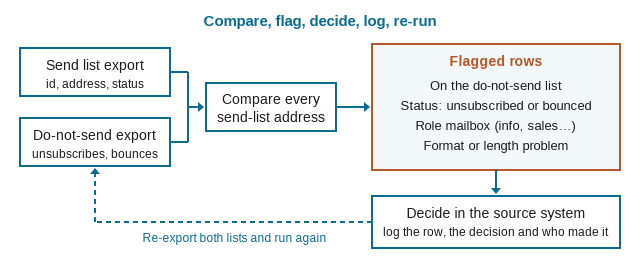
Step 1: Export both lists the same way
- From your email platform or CRM, export the send list with a record id, the address and the subscription status on every row.
- Export the do-not-send list in the same format, on the same day. A suppression list pulled last month misses everyone who opted out since.
- Save both files to an approved work location, never a personal drive or chat thread.
Step 2: Tidy the addresses for comparison, without rewriting them
Add a helper column beside each address and leave the original untouched. In the helper, strip stray spaces and lowercase the part after the @ sign.
Leave the part before the @ alone. RFC 5321, the core mail standard, states: “The local-part of a mailbox MUST BE treated as case sensitive.” When two rows differ only in those capitals, flag them for a person to review rather than merging them.
Step 3: Match the send list against the do-not-send list
In the send-list sheet, add a column that looks up each tidied address in the do-not-send helper column, for example =COUNTIF(DoNotSend!C:C, C2)>0, where column C holds the tidied addresses. COUNTIF ignores capitals, which suits this job: a near-match deserves a look before anyone mails it. Every TRUE is someone who should not get this email unless your records show they asked back in.
Step 4: Flag the other problem rows
Filter for each of these and mark them in a “flag” column:
- Status words. Rows whose own status says unsubscribed or bounced, even if they are missing from the do-not-send export.
- Role mailboxes. Addresses like info@, sales@ or marketing@. RFC 2142 defines these shared names and notes that “Most organizations do not need to support the full set of mailbox names defined here, since not every organization will implement the all of the associated services.” A role address may reach a team, or nobody. Whether to keep it is your call, not an error.
- Format and length. RFC 5321 caps the part before the @ at 64 octets and the domain at 255. Flag rows over those limits, rows with no @, and rows with spaces inside. Don’t try to judge whether a domain looks real; RFC 3696 warns that “The historical heuristics are no longer effective.”
Try it now: the send-list checker runs steps 2 to 4 in your browser. It opens with an invented send list and do-not-send list, including a planted test address in capitals, and flags each row with the reason. No email is sent, and nothing is transmitted apart from what our analytics tool picks up if you opted in: a portion of a clicked input and of copied passages. A clean result is not a verified send list.
Step 5: Decide in the source system, log it, run it again
- Settle each flagged row in the email platform or CRM itself, not by deleting it from your export.
- Keep a simple log: record id, flag, decision, who decided and the date.
- Re-export both lists and repeat steps 2 to 4 until nothing new is flagged.
On re-adding people, one university’s own rules are a useful model, though not a legal standard for anyone else. Western Michigan University’s policy says “unsubscribed addresses may not be re-added to the list unless either (a) the recipient’s membership status in the organization changes or (b) the recipient specifically asks to be re-added.” A written rule like that stops a badge-scan merge from quietly undoing an opt-out.
Verify the result
Before you schedule the send, plant a known answer. Put one test address on the do-not-send list, add it to the send list in capital letters, and confirm the check catches it. Then pick five flagged rows at random and confirm the log explains each one.
Mistakes worth avoiding
- Fixing the export instead of the system. The next export brings the problem back.
- Treating every role mailbox as junk. Some reach the exact team you want.
- Assuming a clean check means a good send. It shows only that nothing matched your rules. An address that passes can still bounce.
- Leaving copies around. Delete working files when the send is done, under your retention policy.
Walks through one pre-send habit drawn from published mail standards and two universities’ guidance. Your privacy and legal teams set your company’s opt-out rules.
Sources
- J. Klensin, RFC 5321, "Simple Mail Transfer Protocol" (October 2008)
- J. Klensin, RFC 3696, "Application Techniques for Checking and Transformation of Names" (February 2004, informational)
- D. Crocker, RFC 2142, "Mailbox Names for Common Services, Roles and Functions" (May 1997)
- Western Michigan University, "Mass Email Policy" (one university's internal policy)
- University of Alberta Marketing + Communications Toolkit, "Lists"
- Associations Now, "A Data-Cleaning Strategy for Today's Times" (March 14, 2022)
- Adapted from AssociationAI.ai, "Check a Member Email Send List Against Your Do-Not-Send List Before the Send"